XPath Contains Text: Syntax & Best Practices
You copied a selector from DevTools, it worked once, and then the site shipped a harmless-looking UI tweak. “Submit” became “Submit now.” A React component wrapped half the label in a <span>. Localization changed CHECKOUT to Checkout. Your scraper didn't fail because XPath is bad. It failed because the easy version of XPath contains text stops being easy on modern frontends.
That's where most guides fall short. They teach contains(text(), 'Login') as if text on the page is a single clean string. Real apps don't behave that way. Single-page apps split text across nodes, design systems inject whitespace, and global products surface casing and spacing quirks that break brittle locators fast. The syntax is simple. The production trade-offs aren't.
Why XPath Contains Is Your Scraper's Best Friend
A scraper built on exact text matching is living on borrowed time. If your locator says //button[text()='Submit'], one copy edit breaks it. If the product team changes the label to Submit order, you're back in the DOM inspector debugging something that shouldn't have been fragile in the first place.
contains() is useful when a stable substring is safer than an exact-text match.
That lines up with what survives in production. Teams rarely control the frontend markup, but they can often rely on a stable word or phrase inside it. Login, Checkout, Add to cart, Welcome, and Continue tend to persist even when wrappers, classes, and exact copy shift around them.
Practical rule: If only part of the visible label is stable, match the stable part and ignore the rest.
A simple example:
//button[contains(text(), 'Submit')]
This matches Submit, Submit now, and Submit order. That flexibility is why XPath stays useful even if you normally prefer CSS selectors for simpler attribute-based lookups.
If you're doing broader website data extraction work, this matters beyond buttons. The same pattern helps with links, headings, banners, and menu items that keep their semantic meaning while the UI keeps shifting underneath.
Still, contains() isn't magic. It's strong against small copy changes and weak against structural text fragmentation, whitespace noise, and localization quirks. Those are the failure modes that separate a tutorial selector from one you can trust overnight.
Mastering the Core Syntax of XPath Contains
The core form is small:
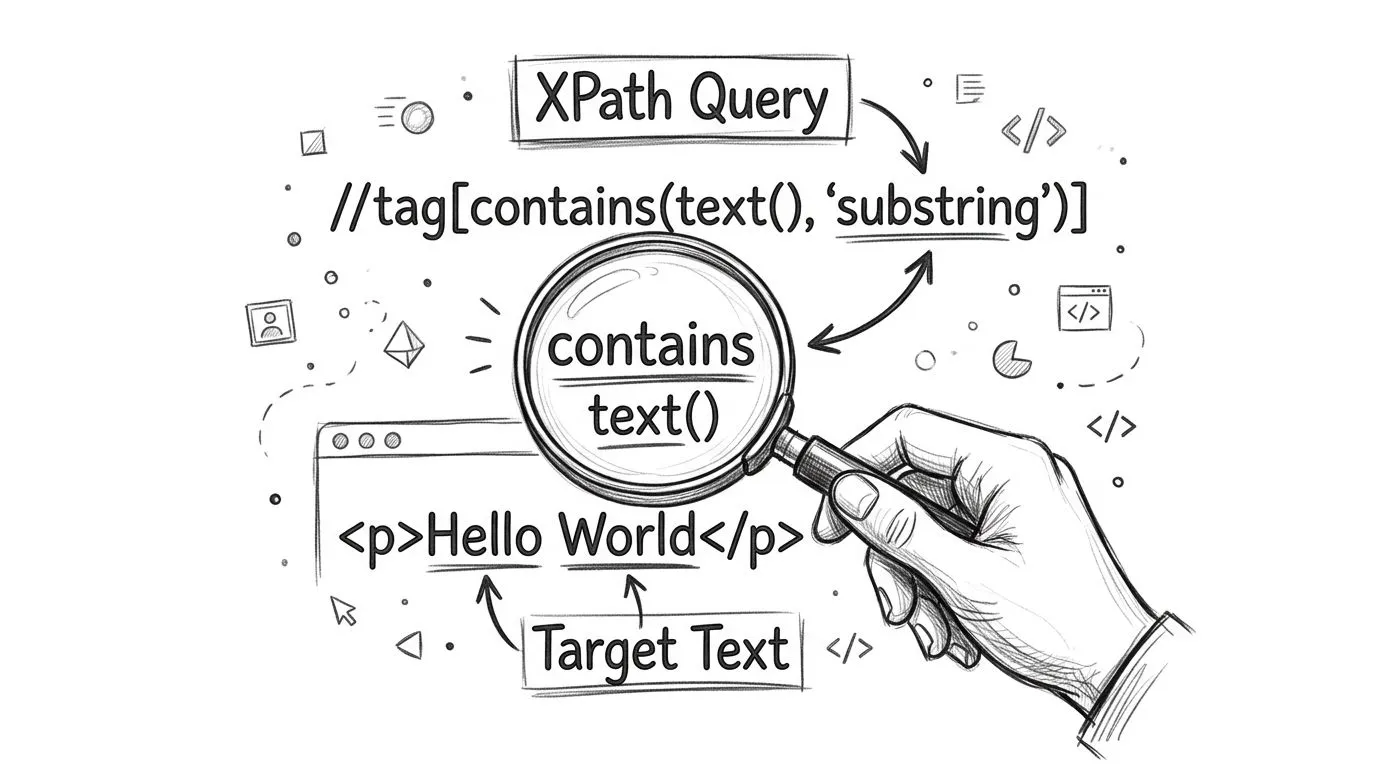
//tag[contains(text(), 'substring')]
Read it left to right. Find every tag where the direct text node contains substring. The contains() function returns a boolean, so inside the predicate it acts as a filter.
The basic pattern
Start with the narrowest tag you can. Don't write //*[contains(text(), 'Login')] unless you have no better option. If you know it's a button, say button. If it's a link, say a.
//button[contains(text(), 'Login')]
That's better than exact matching when content isn't perfectly static. Empirical studies in Selenium automation show that locators using contains(text(), '...') survive DOM redesigns and copy edits 3.2 times longer than exact text() matches, as documented in ScrapingBee's XPath text selection guide.
That durability matters because maintenance usually costs more than writing the first selector. A brittle locator doesn't stay cheap.
Copy-paste examples that hold up
Here are the patterns I reach for first.
Buttons with minor label changes
//button[contains(text(), 'Continue')]
Works when the UI flips between Continue, Continue to payment, or Continue securely.
Links with descriptive anchor text
//a[contains(text(), 'Forgot password')]
Useful when the product team adds punctuation or supporting text.
Status or message blocks
//div[contains(text(), 'Welcome')]
Good when the exact string changes because the app includes a username or account state.
A quick comparison helps:
| Use case | XPath |
|---|---|
| Button label changed slightly | //button[contains(text(), 'Submit')] |
| Link text has extra words | //a[contains(text(), 'Reset password')] |
| Banner includes dynamic name | //div[contains(text(), 'Welcome')] |
For extraction workflows, it also helps to test selectors against rendered page output instead of raw fetched HTML. A page can look simple in the browser and still differ after JavaScript runs. When I need to inspect what the rendered DOM exposes, I usually pull the page through a renderer or extraction layer first, then validate the selector against that output. If you need a structured workflow for that, Webclaw's content extraction API docs are useful as a reference for rendered extraction pipelines.
Keep the selector readable. A slightly less clever XPath that another engineer can debug next week is usually the right one.
One caveat matters before you get comfortable. contains(text(), ...) only sees direct text nodes. On plain HTML, that's fine. On component-heavy UIs, it's the trap that causes the most confusing failures.
The text() Versus . Trap in Modern Web Apps
Most failed text-based XPath debugging sessions come down to one misunderstanding. You can see the label on screen, but XPath can't find it with text(). The problem usually isn't timing. It's node structure.
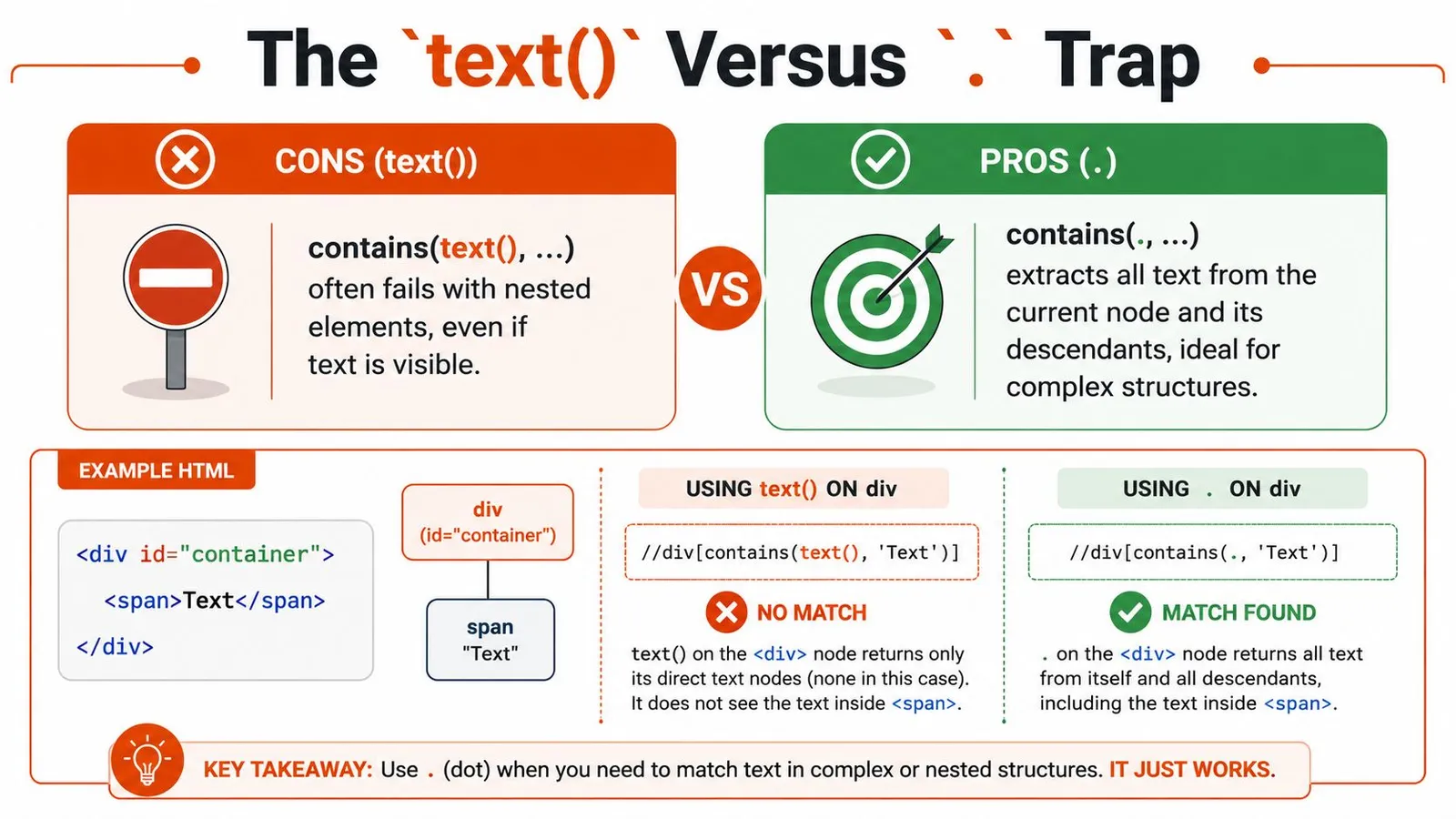
The text() function reads direct text nodes only. It doesn't automatically flatten text from child elements. In modern SPAs, labels often get split across nested tags for styling, icons, emphasis, or state-specific rendering.
contains(text(), 'Login') can fail when text is split across child elements; contains(., 'Login') tests the element’s full descendant string value.
Why visible text still doesn't match
Take this markup:
<button><span>Sign</span> Up</button>
The full visible label is Sign Up. A beginner often writes:
//button[contains(text(), 'Sign Up')]
That can fail because the text is split. Part sits inside <span>, part sits in the button's direct text node.
Another example:
<button>Log <b>In</b></button>
This often breaks:
//button[contains(text(), 'Log In')]
Because text() doesn't represent the flattened visible string the way you expect.
Here's the practical difference:
| Pattern | What it checks | Good for |
|---|---|---|
contains(text(), 'Login') | Direct text nodes only | Simple flat HTML |
contains(., 'Login') | String value of current node and descendants | Nested labels in SPAs |
A lot of React and Vue markup falls into the second category.
Here's a helpful walkthrough before the next example:
The fix that works on nested labels
Use a dot when you want the element's full descendant text value:
//button[contains(., 'Sign Up')]
That succeeds on nested content because . evaluates the string value of the current node, including descendant text.
Compare them side by side:
//button[contains(text(), 'Login')]   <!-- fragile on nested markup -->
//button[contains(., 'Login')]        <!-- resilient on nested markup -->
If the text is visible but
contains(text(), ...)returns nothing, inspect the child nodes before you blame timing.
This shows up constantly in component libraries. Material UI, Chakra UI, Tailwind-heavy design systems, and custom React components all tend to wrap pieces of visible text in extra elements. Beginners see the word on screen and assume XPath sees a single node. It doesn't.
If you need the rendered HTML to diagnose whether the issue is timing or node fragmentation, saving a full page snapshot helps. A simple HTML download workflow makes it much easier to compare what the browser rendered against what your scraper parsed.
contains(., ...) is not always better, though. It's broader. That means it can match parent containers whose descendants also contain the same text. Scope it with the right tag, nearby attributes, or structural context so you don't trade one flaky selector for an overbroad one.
Handling Whitespace and Case Sensitivity Like a Pro
Once you fix the text() versus . issue, the next class of failures feels smaller but wastes just as much time. The text is technically there, but spacing or capitalization doesn't line up with your query.
That's common on multilingual products, CMS-driven pages, and A/B-tested flows. One environment renders CHECKOUT. Another renders Checkout. A third inserts a non-breaking space or line break that your eye ignores but XPath doesn't.
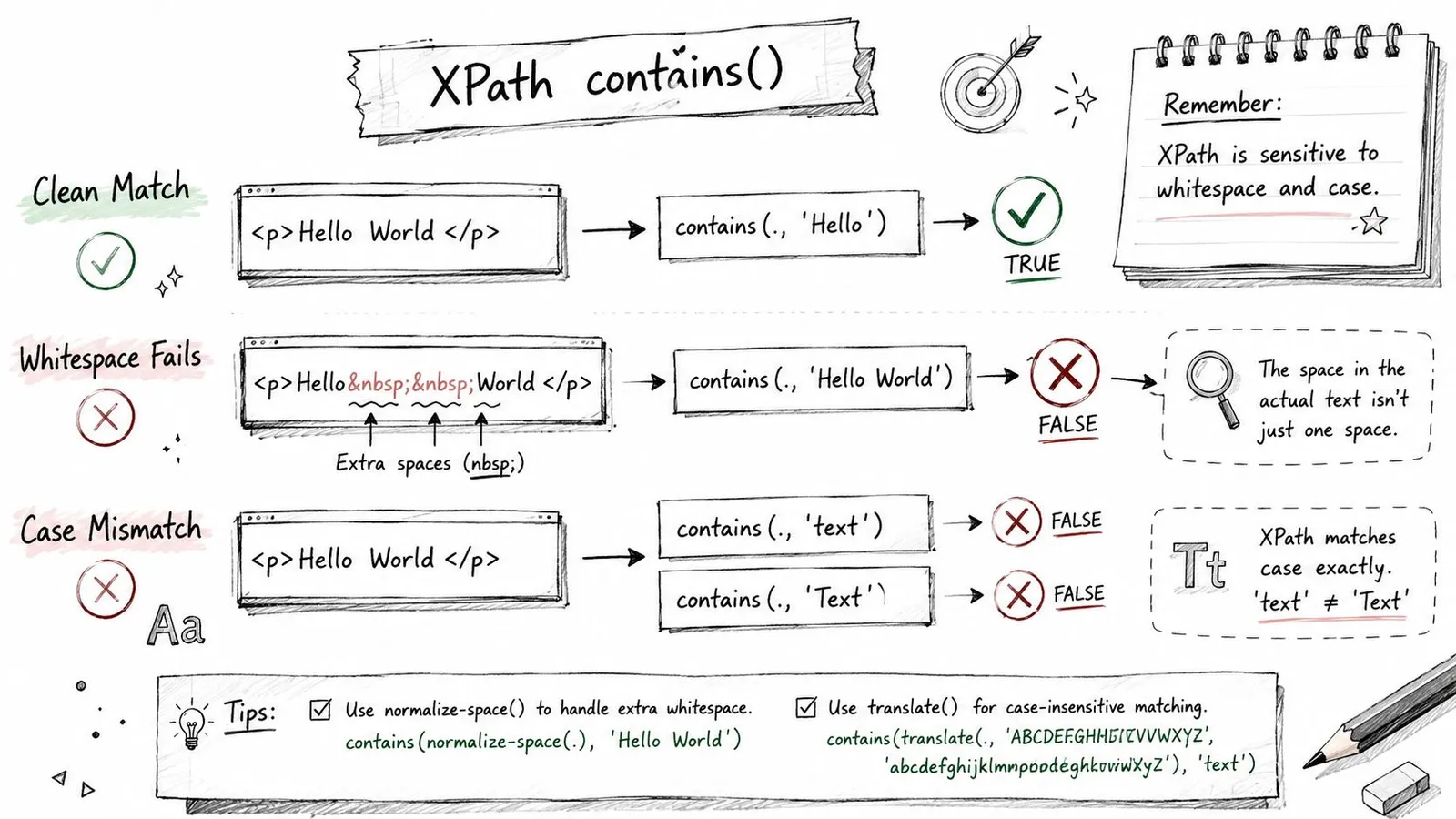
Case differences and Unicode whitespace can make naive contains() matches brittle. normalize-space() handles XML whitespace and translate() can map an explicit set of characters; neither provides full Unicode case folding.
Clean up whitespace before matching
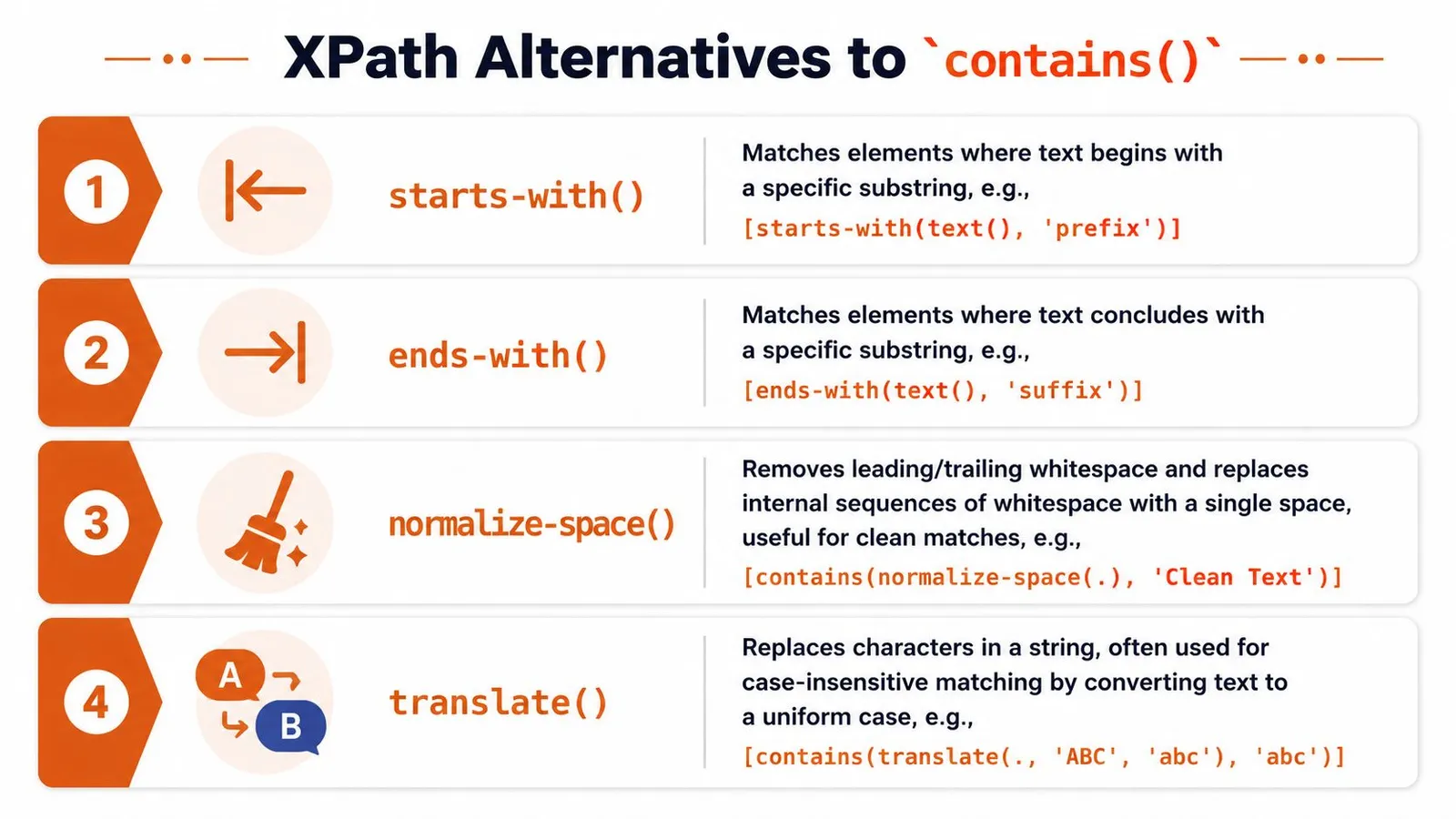
normalize-space() trims leading and trailing whitespace and collapses repeated internal whitespace into a single space.
That makes this:
<button>
  Sign   In
</button>
behave more like what a human reads.
Use it like this:
//button[contains(normalize-space(.), 'Sign In')]
That pattern handles line breaks, tabs, repeated spaces, and a lot of markup formatting noise. It's one of the safest upgrades you can make to text-based selectors.
A few reliable examples:
- Whitespace-heavy buttons:
//button[contains(normalize-space(.), 'Continue')] - Messy labels:
//label[contains(normalize-space(.), 'Email address')] - Rendered content blocks:
//div[contains(normalize-space(.), 'Order summary')]
Make matching case-insensitive in XPath 1.0
XPath 1.0 doesn't have a simple lowercase function in the environments most automation tools expose, so the standard workaround is translate().
Use this template:
//*[contains(
  translate(normalize-space(.), 'ABCDEFGHIJKLMNOPQRSTUVWXYZ', 'abcdefghijklmnopqrstuvwxyz'),
  'checkout'
)]
That converts uppercase letters to lowercase before matching. Pairing it with normalize-space(.) deals with both casing and spacing in one expression.
For a narrower selector, keep the tag specific:
//button[contains(
  translate(normalize-space(.), 'ABCDEFGHIJKLMNOPQRSTUVWXYZ', 'abcdefghijklmnopqrstuvwxyz'),
  'checkout'
)]
That's verbose, but it's dependable. In production code, I often assign the alphabet strings to constants so the XPath stays readable in the source file.
Case-insensitive matching is worth the extra verbosity when the same flow runs across markets, brand variants, or CMS-controlled pages.
If your scraping pipeline feeds text into downstream parsers, this same normalization mindset helps outside XPath too. A lightweight website text extraction workflow is useful when you need to compare what users see with what your parser consumes after cleanup.
One warning. Don't automatically apply translate() everywhere. It makes expressions longer and harder to read. Use it where casing is unstable, not as a default reflex.
Powerful Alternatives When Contains Is Not Enough
contains() is the workhorse, but a scraper built around one function only tends to get sloppy. The better habit is choosing the tightest string function for the specific instability you're dealing with.
When the beginning is stable
Use starts-with() when only the prefix is predictable.
Example markup:
<div>User: Alice</div>
<div>User: Bob</div>
XPath:
//div[starts-with(normalize-space(.), 'User:')]
This is usually cleaner than contains() when the meaningful token is expected right at the start. It also reduces accidental matches from elements that mention the same text later in a sentence.
Good fits:
- User labels:
//div[starts-with(normalize-space(.), 'User:')] - Prices with stable currency prefix:
//span[starts-with(normalize-space(.), '$')] - System messages:
//p[starts-with(normalize-space(.), 'Warning')]
When whitespace normalization matters more than substring matching
Sometimes the issue isn't “contains text” at all. It's dirty formatting. In that case, normalize-space() may be the answer, with or without contains().
Compare these:
//button[contains(., 'Sign In')]
//button[normalize-space(.)='Sign In']
The first is forgiving on extra words. The second is stricter but resilient to ugly spacing. If you know the final normalized label should be exact, equality after normalization is often a better locator than substring matching.
That trade-off matters:
| Function pattern | Best use |
|---|---|
contains(...) | Partial stable text |
starts-with(...) | Stable prefix |
normalize-space(.)='...' | Exact text with dirty spacing |
contains(normalize-space(.), '...') | Partial text with dirty spacing |
A lot of flaky selectors come from using contains() when the underlying need is whitespace cleanup plus exact matching.
When regex support exists
If your engine supports XPath 2.0 or later, matches() becomes a strong option for structured text patterns. That's useful when labels follow a pattern rather than a single fixed substring.
Example:
//div[matches(normalize-space(.), '^Order #[A-Z0-9]+$')]
Or:
//span[matches(., '^(Error|Warning|Notice)')]
That said, don't assume browser-driven automation tools support it. Many common Selenium environments expose XPath 1.0 behavior, so matches() may not be available even if it looks elegant in theory.
A practical decision guide:
- Use
contains()when one durable substring is enough. - Use
starts-with()when the start of the text is the stable part. - Use normalized equality when the full label should match after cleanup.
- Use
matches()only if you know your runtime supports XPath 2.0+.
When teams hit increasingly dynamic sites, they often stop debating individual XPath tricks and move up a layer. Tools that rely on rendered extraction or schema-guided parsing can remove a lot of low-level selector maintenance for structured jobs. If you're evaluating that direction, an AI web extraction API is worth understanding as a different operating model, especially for pages where the DOM is noisy and text selectors keep drifting.
One last trade-off is easy to miss. The more expressive the XPath, the more likely another engineer will misunderstand it six months later. Production-ready doesn't mean clever. It means specific, scoped, and debuggable.
From Theory to Practice with Actionable Snippets
The patterns above matter only if they survive in real tools. Here are two versions I'd ship: one in Selenium for browser automation, one in Playwright for modern app flows.
Selenium in Python
Use contains(., ...) when nested text is likely, and normalize when formatting is unstable.
from selenium.webdriver.common.by import By

login_button = driver.find_element(
    By.XPATH,
    "//button[contains(normalize-space(.), 'Log In')]"
)

checkout_button = driver.find_element(
    By.XPATH,
    "//button[contains(translate(normalize-space(.), 'ABCDEFGHIJKLMNOPQRSTUVWXYZ', 'abcdefghijklmnopqrstuvwxyz'), 'checkout')]"
)
A stricter exact-match version after cleanup:
submit_button = driver.find_element(
    By.XPATH,
    "//button[normalize-space(.)='Submit Order']"
)
Playwright in JavaScript
Playwright gives you higher-level text locators, but XPath still helps when you need tight control over nested structures or mixed attribute-plus-text constraints.
const loginButton = page.locator(
  "xpath=//button[contains(normalize-space(.), 'Log In')]"
);

const accountLink = page.locator(
  "xpath=//a[starts-with(normalize-space(.), 'Account')]"
);

const checkoutButton = page.locator(
  "xpath=//button[contains(translate(normalize-space(.), 'ABCDEFGHIJKLMNOPQRSTUVWXYZ', 'abcdefghijklmnopqrstuvwxyz'), 'checkout')]"
);
For support workflows, agent tooling often needs the same kind of DOM resilience. If you're building automated support or browser-driven task execution, AgentStack's guide to automated support solutions is a practical reference for wiring those systems together.
The main lesson is simple. Basic XPath contains text syntax is easy to memorize. Stable selectors come from understanding where it fails. Use text() only when the DOM is flat. Switch to . when nested elements split visible labels. Normalize whitespace when markup is noisy. Fold case when localization or CMS output makes casing unpredictable.
Even then, some sites will still fight you. Heavy client rendering, anti-bot systems, and inconsistent markup can turn handcrafted selectors into a maintenance loop. At that point, the problem isn't your XPath skill. It's the extraction surface you're operating on.
If you're tired of debugging fragile selectors on JavaScript-heavy pages, Webclaw is worth a look. It turns hard-to-scrape URLs into clean, structured output that's easier for both engineers and language models to work with, which means less time babysitting DOM quirks and more time shipping the part that matters.