
Downloading HTML Files: From Browser to API in 2026
You're usually trying to do one of four things when you look up downloading HTML files.
You want to save a page for later. You want the raw markup for analysis. You want to automate collection across many URLs. Or you've hit the much messier version of the problem, where a browser, extension, or scraper keeps giving you a useless .html wrapper instead of the actual content.
The method that works for one of those jobs often fails badly on the next. Browser Save As is fine for a one-off page. curl and wget are excellent when the site is mostly static. Headless browsers are the right move when JavaScript builds the page in the browser. And once you need repeatability, anti-bot resilience, or AI-ready output, raw HTML downloading stops being a simple “save the page” task and turns into infrastructure.
The Foundational Method Using Your Browser
The simplest way to download HTML is still the browser menu. For one page, one time, nothing beats it for speed. Open the page, save it, and inspect the file locally.
Choose Webpage, HTML Only when you need one HTML file. Webpage, Complete also creates an asset folder, which complicates parsing and model ingestion.
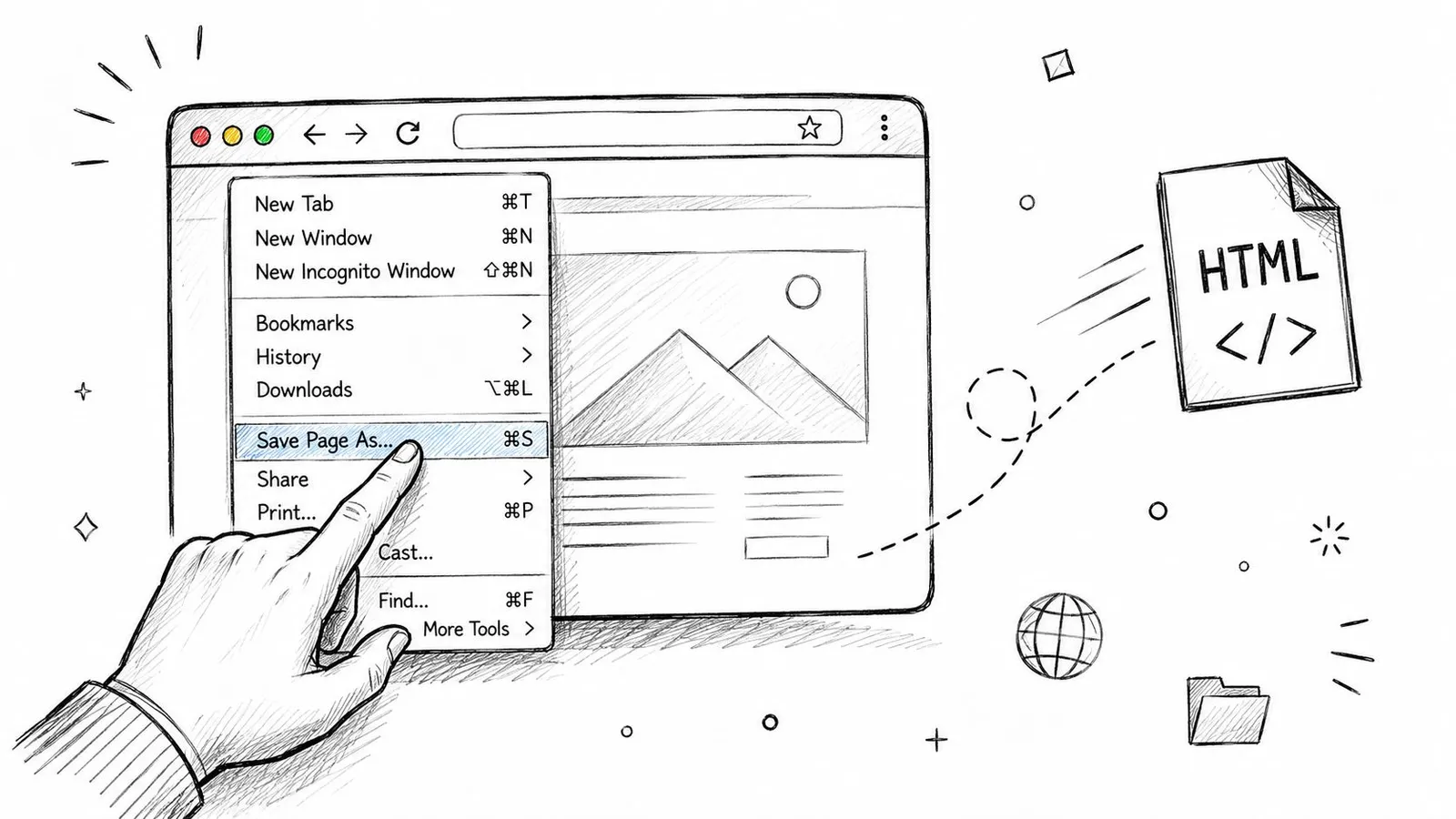
Use HTML Only unless you need assets
If your goal is offline visual fidelity, “Complete” can make sense. It saves the HTML plus a companion folder for images, CSS, JavaScript, and related files.
If your goal is extraction, comparison, or AI ingestion, HTML Only is usually the better choice.
Practical rule: If a downstream system expects one file, save one file. Don't hand it an HTML document plus a folder tree unless you explicitly need the assets.
That single decision avoids a lot of cleanup later:
- Cleaner parsing: You get one document instead of a document plus a separate asset directory.
- Less noise: You avoid bundling images, stylesheets, and scripts that don't help with content extraction.
- Better portability: A lone
.htmlfile is easier to version, diff, upload, and inspect.
If you're testing extraction workflows and want a quick baseline before automation, a minimal local HTML file is a good starting point. That's also a sensible point to review Webclaw getting started docs if your one-off manual process is about to become a repeatable pipeline.
Browser-specific steps that actually matter
The exact menu varies a little, but the principle stays the same.
-
Chrome and Firefox on Windows
- Open the page.
- Right-click and choose Save as.
- In Save as type, select Webpage, HTML Only.
- Name the file and save it.
-
Safari on macOS
- Open the page.
- Use File > Save As or File > Save Page As depending on your version.
- Choose the HTML-only style option if available in the format menu.
- Save the file to a predictable folder.
-
If the result looks wrong
- Open the saved file in a text editor.
- Check whether it contains the article or main page content, not just navigation and scripts.
- If it's mostly boilerplate, the site may be rendering content with JavaScript after load.
A browser save is a snapshot, not a guarantee. On modern apps, it may preserve the shell of the page rather than the content you actually wanted.
That's where manual saving stops being enough.
Automating Downloads with Command-Line Tools
If you're saving more than a few pages, clicking around gets old fast. curl and wget become indispensable for such tasks. They're fast, scriptable, and available almost everywhere developers work.
They're also blunt instruments. They fetch what the server returns. If the page is static, that's perfect. If the page depends on client-side rendering, you'll often save an empty shell.
Curl for direct page fetches
curl is the straightforward option when you need a direct request and a file on disk.
curl -L https://example.com/page -o page.html
That does three useful things in one line:
- Fetches the URL
- Follows redirects with
-L - Writes to a file with
-o
A few practical variants come up often.
curl -L -A "Mozilla/5.0" https://example.com/page -o page.html
Use a browser-like user agent when a site behaves differently for generic clients.
curl -L -H "Accept: text/html" https://example.com/page -o page.html
Use an explicit Accept header when you want to be clear that you're requesting HTML, not an API format.
curl -L "https://example.com/page?view=print" -o print.html
Target print or reader variants if the site exposes them. Those often produce cleaner markup than the default page.
A common failure mode is thinking the output file proves you downloaded the intended resource. It doesn't. In a landmark analysis of repository usage, Google generated 95.8% of measurable full-text downloads from repository content, and the same analysis noted the risk that automated tools can misinterpret download links and capture an HTML wrapper instead of the target file at scale, as documented in the Digital Library Federation repository usage analysis.
That matters outside academic repositories too. If a link points to a download flow, consent gate, or redirect page, curl may save the wrapper page rather than the file users thought they were grabbing.
Wget for recursive capture and batch work
wget is the better fit when one page turns into a section, a docs tree, or a small site mirror.
wget -E -H -k -K -p https://example.com/docs/start
This family of flags is useful because wget can:
- Convert links for local viewing
- Pull page requisites like images and styles
- Store pages in a browsable offline form
For a limited recursive crawl:
wget --mirror --convert-links --adjust-extension --page-requisites --no-parent https://example.com/docs/
That's a practical archive command for static documentation.
If you need to process a list of URLs:
wget -i urls.txt
For sites that gate behavior based on client identity, pairing wget with custom headers and a realistic user agent usually helps, but it doesn't solve rendering.
Static fetchers are dependable when the server sends final HTML. They're frustrating when the server sends a skeleton and expects the browser to finish the job.
There's also a strategic angle here. Teams doing large-scale site capture for content, indexing, or commerce visibility usually end up thinking beyond raw downloads. If that work overlaps with discoverability, this guide on how to ensure your store's AI readiness is worth reading because crawler access and extractability often become the same operational problem.
For one-off shell scripts and local experiments, a dedicated command-line workflow is still hard to beat. If you want a cleaner operational wrapper around that style of usage, the Webclaw CLI docs show what a more modern extraction-oriented command interface looks like.
Handling JavaScript-Rendered Content with Headless Browsers
A lot of failed HTML downloads aren't network failures. They're rendering failures.
You hit a URL with curl, save the result, open the file, and find a page title, some empty containers, and a pile of JavaScript. The content was never in the initial response. The browser was supposed to execute scripts, fetch additional data, and build the final DOM after the first HTML arrived.
For client-rendered applications, use a renderer when the initial HTML does not contain the required content. Inspect the rendered DOM and network responses to determine what must be captured.
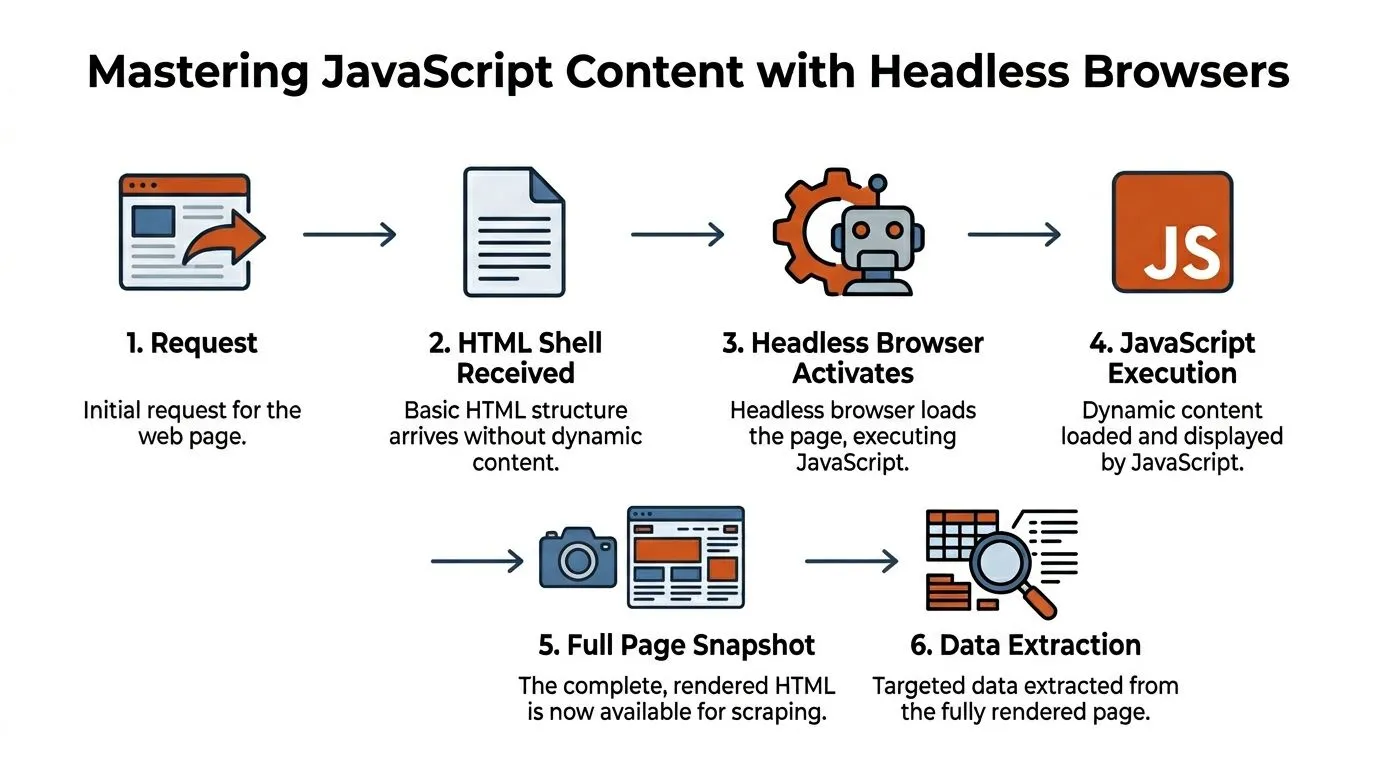
Why static fetchers return empty shells
Modern frontends often send a minimal document first:
- A root
<div>for the app - Script tags for the JavaScript bundle
- Very little actual page content
The browser then does its main work. It runs application code, makes API calls, hydrates components, and mutates the DOM. If your downloader never executes that JavaScript, it never sees the rendered state.
This is why developers move to Puppeteer, Playwright, or Selenium. These tools drive an actual browser engine, even when running headless, so they can wait for rendering and then capture the final HTML.
Don't ask “Did I get a response?” Ask “Did I get the rendered state I actually need?”
A reliable extraction workflow
The basic pattern is simple even if the operational details get messy.
- Launch a browser context
- Go to the target page
- Wait for a meaningful selector, not just page load
- Extract the DOM after rendering completes
- Save the result or pass it into your parser
In Playwright, the logic usually looks like this in practice:
const { chromium } = require('playwright');

(async () => {
  const browser = await chromium.launch();
  const page = await browser.newPage();
  await page.goto('https://example.com', { waitUntil: 'domcontentloaded' });
  await page.waitForSelector('article, main, [data-loaded="true"]');
  const html = await page.content();
  require('fs').writeFileSync('page.html', html);
  await browser.close();
})();
The key line isn't goto. It's waitForSelector. Waiting for a useful content signal is what separates a rendered capture from a race condition.
A few trade-offs matter immediately:
| Choice | What it helps | What it costs |
|---|---|---|
domcontentloaded | Faster initial control | May be too early for data-rich pages |
networkidle | Good for many apps | Can hang on pages with background requests |
| Selector wait | Most reliable content signal | Requires page-specific knowledge |
When inspector tools are enough
Sometimes you don't need a full scripted browser. If you're debugging a single page, browser DevTools can help you confirm what the real document looks like after rendering.
A practical manual workflow looks like this:
- Open DevTools: Right-click and choose Inspect.
- Check Sources: Find the root document and related resources.
- Inspect Elements: Confirm that the content exists in the live DOM.
- Save the right thing: If the DOM is present, save after render, not before.
If you're deciding between Playwright and Puppeteer for this style of work, the Playwright vs Puppeteer comparison on the Webclaw blog is a useful technical reference because the differences usually show up in reliability, browser support, and workflow ergonomics rather than raw capability.
One more practical note. Timing still breaks otherwise sound scripts. If a page is highly dynamic, loading too early can leave you with a structurally valid but semantically empty HTML file. In those cases, deterministic waits, network inspection, and explicit element checks beat “sleep for five seconds” every time.
Navigating Advanced Scraping Challenges
A headless browser solves rendering. It doesn't solve the web.
The first version of a scraper often works on a laptop against a handful of pages. Then it moves to a server, starts running repeatedly, and falls apart. Requests get challenged. Sessions expire. Geographic variants change the markup. The login flow behaves differently. A selector that worked yesterday breaks after a frontend deployment.
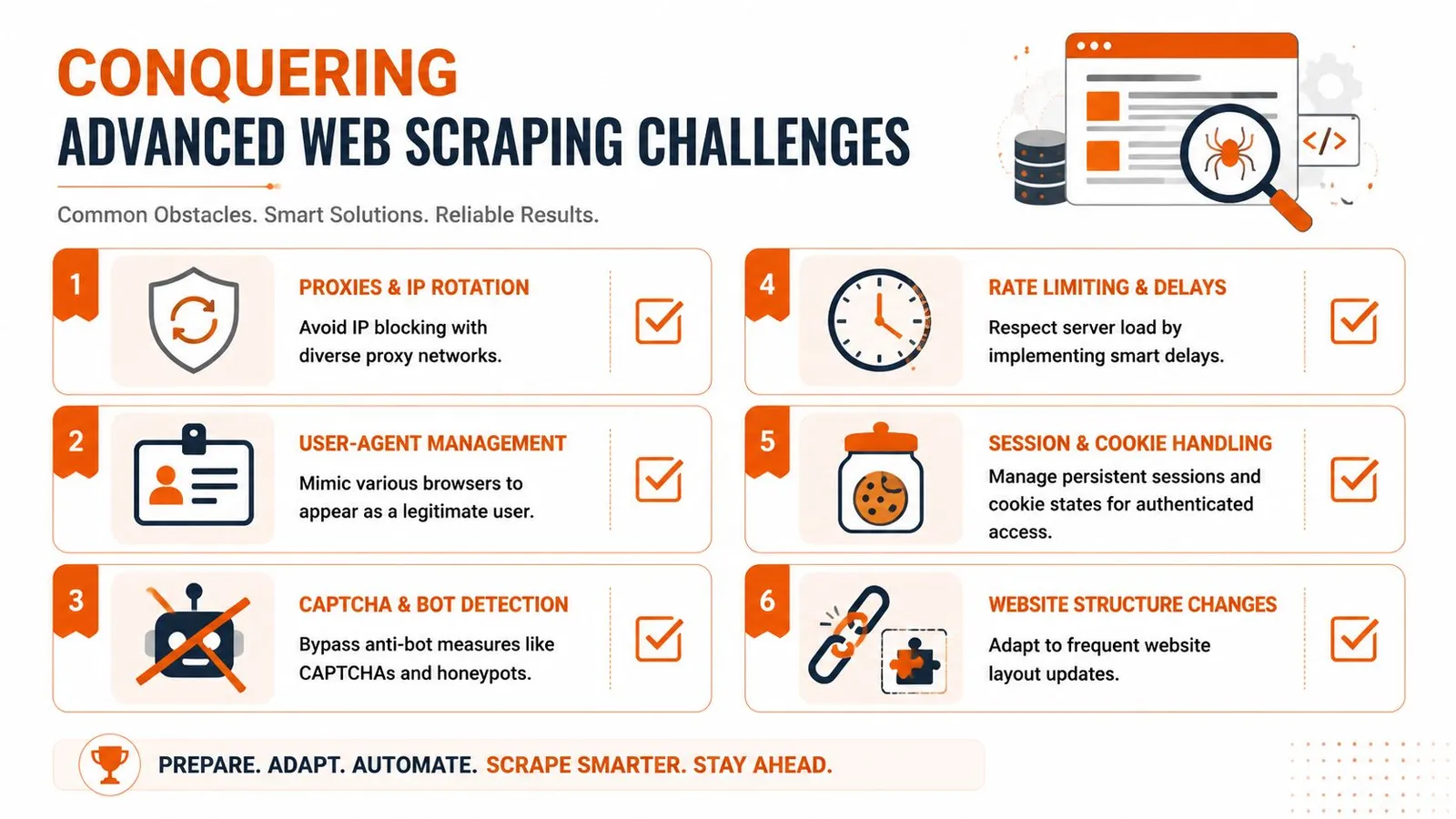
Why working code still fails in production
Reliable downloading HTML files at scale is less about “can I fetch this page?” and more about operational discipline.
The usual breaking points are familiar:
- IP reputation: A script running from one obvious server address gets blocked much faster than a real user.
- Session state: Logged-in flows need cookies, headers, and consistent context across requests.
- Rate control: Hammering endpoints gets you throttled or flagged.
- Markup drift: Sites change class names, DOM shape, and interaction patterns constantly.
That's why mature scraping systems end up with proxy management, retry logic, session storage, browser fingerprint controls, and ongoing monitoring. None of those pieces are glamorous, but each one becomes mandatory once uptime matters.
The browser is only one layer. The network identity, session behavior, and request rhythm matter just as much.
For teams diagnosing why a script works locally but not against protected targets, this Cloudflare scraping diagnostic checklist is a practical troubleshooting reference because it forces you to inspect the entire request path instead of just the page code.
The hidden layer is often the browser itself
Not every HTML download problem comes from the target site. Sometimes the local browser is the culprit.
A well-documented Chrome anomaly causes the browser to recognize all download links as HTML files, often named download.html. Historical support reports tied this behavior to conflicting extensions, especially Free Download Manager, which altered default handling of download links, as shown in the Chrome community thread on links being recognized as HTML.
That kind of issue causes two common mistakes in troubleshooting:
- You blame the site when the browser extension rewrote the flow.
- You blame malware when the browser is merely saving a safe redirect page.
If a file keeps arriving as HTML no matter what link you click, check extensions before you rewrite your scraping logic. Disable download managers, retry in a clean profile, and compare the network request path. Many “the site is broken” reports collapse quickly once the browser stops intercepting the download.
The Production-Ready API Method for Flawless Extraction
At some point, building your own extraction stack stops being an engineering advantage and starts becoming maintenance debt.
The shift usually happens when one of these becomes true: you need JavaScript rendering across many domains, you need consistent output for AI systems, or you need reliability on sites that actively interfere with scraping. That's when an extraction API starts to look less like convenience and more like sensible architecture.

What an API removes from your stack
A managed API can abstract away the ugliest parts of downloading HTML files in production:
- Rendering: It handles JavaScript-heavy pages without you running browser fleets yourself.
- Retries and failure handling: It can retry transient failures without custom orchestration.
- Anti-bot friction: It can manage the evasive plumbing you'd otherwise have to build and maintain.
- Output shaping: It can return formats that are easier to consume than raw browser dumps.
This matters because the hard part of extraction usually isn't making one request. It's making thousands of requests reliably while keeping the result useful.
A good parallel exists in adjacent SEO and data workflows. Teams that outgrow hand-built scripts often make the same move toward managed interfaces for rank tracking and search intelligence. If you work on that side too, this guide to mastering SEO ranking APIs captures the same architectural lesson: abstraction becomes valuable once consistency matters more than local control.
Why clean output matters more than raw output
Raw HTML is often a poor artifact for AI pipelines. It includes nav trees, repeated links, cookie prompts, scripts, styling hooks, hidden elements, and template clutter. You can clean that yourself, but then you've added another layer of custom logic to maintain.
That's where API-first extraction is often stronger than “just download the page and parse it later.” It can return content that is already normalized into markdown, plain text, or structured JSON.
Here's the practical distinction:
| Output type | Best for | Weakness |
|---|---|---|
| Raw HTML | Full forensic access to page markup | Noisy and expensive to process |
| Markdown | LLM input and readable content review | Loses some structural detail |
| JSON | Structured pipelines and downstream apps | Requires schema design |
If you want to see what an API-first integration looks like, the Webclaw API docs are the right reference point because they show the request and output model directly.
A short product walkthrough is useful here before you decide whether building in-house is worth it.
The main trade-off is simple. You give up some low-level control, but you remove a lot of repetitive infrastructure work. For teams shipping AI agents, retrieval systems, or web-scale content ingestion, that's usually the right trade.
Choosing the Right HTML Download Method
The right approach depends less on the page and more on the job.
If you're saving one article, use the browser. If you're scripting repeatable static fetches, use curl or wget. If the page renders in the browser after load, reach for Playwright or Puppeteer. If the work needs to survive hostile sites, changing markup, and production AI ingestion, use an extraction API and stop treating scraping as a side script.
HTML Download Method Comparison
| Method | Use Case | Handles JavaScript? | Scalability | Effort |
|---|---|---|---|---|
| Browser Save As | One-off page capture, manual review | Sometimes, but unreliable for dynamic apps | Low | Low |
curl | Direct static page fetches, scripting | No | Medium | Low |
wget | Recursive downloads, archives, batch pulls | No | Medium | Medium |
| Headless browser | Dynamic pages, SPAs, authenticated flows | Yes | Medium to high | High |
| Extraction API | Production pipelines, AI ingestion, protected sites | Yes | High | Low to medium |
A few rules of thumb help:
- Choose the browser when speed matters more than repeatability.
- Choose command-line tools when the site is simple and you need automation without browser overhead.
- Choose a headless browser when the content isn't present in the initial response.
- Choose an API when the extraction itself isn't your product and you'd rather avoid maintaining scraping infrastructure.
Good HTML downloading isn't about using the most powerful tool every time. It's about using the cheapest tool that still produces the correct artifact.
If you're building AI workflows and need more than raw page dumps, Webclaw is worth a look. It's designed for turning hard-to-scrape URLs into clean, token-efficient content that language models can use, without making you run the full browser, proxy, and anti-bot stack yourself.