
Curl POST JSON: A Practical Guide for Developers
You're probably here because an API endpoint is rejecting what looks like perfectly valid JSON, or because you're tired of copying the same verbose curl command from old docs and tweaking quotes until it finally works. That's a normal place to be. A lot of curl post JSON examples still teach the older pattern first, and that's where many of the avoidable mistakes start.
The short version is simple. The classic -d approach still works, and you need to understand it because most API docs still use it. But for new scripts, --json is usually the cleaner option. It cuts down on manual headers, reduces command noise, and gives you a better default for real API work. The subtle detail most guides skip is payload fidelity. If you're sending multi-line JSON, reading from stdin, or trying to debug malformed requests, newline handling matters more than people think.
The Anatomy of a Basic JSON POST Request
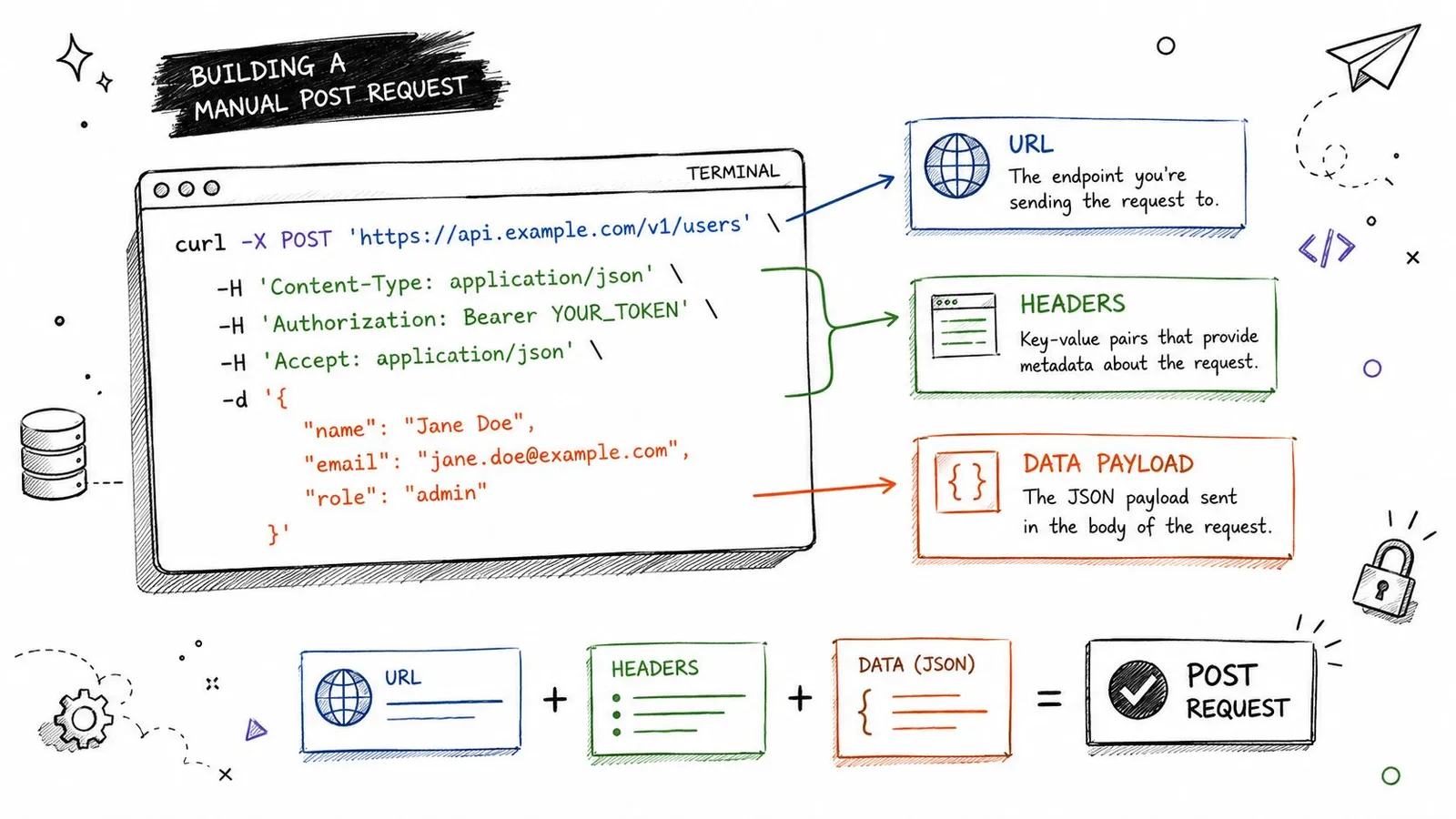
Most developers first learn curl post JSON with a command like this:
curl -X POST \
  -H 'Content-Type: application/json' \
  -d '{"name":"Ada","role":"developer"}' \
  'https://api.example.com/users'
That pattern has held up across major guides: use POST, set Content-Type: application/json, and send the payload with -d or --data, as shown in this ReqBin curl POST JSON example. It's still the baseline because it maps directly to how HTTP requests work.
What each part is doing
-X POST tells curl which HTTP method to use. In some cases it's technically optional, because curl can infer a POST when you send data, but I still like it in examples because it makes the request intent obvious when you scan a command quickly.
-H 'Content-Type: application/json' tells the server how to interpret the request body. Without that header, you're leaving room for the server to treat the payload as something else, which is where confusing API errors start.
-d '{...}' is the body itself. For small test payloads, inline JSON is fine. It's fast, readable enough, and easy to paste from API docs.
Practical rule: If an endpoint says it accepts JSON, treat the
Content-Typeheader as required unless the API explicitly says otherwise.
Why the manual form still matters
Even if you plan to use --json, you still need to know what the older command is assembling under the hood. That helps when you're reading vendor docs, translating examples into scripts, or comparing curl behavior with Postman, Insomnia, or a client SDK.
A good way to build that intuition is to compare docs and terminal examples side by side. If you work with API-heavy workflows, GitDocAI's guide to mastering API POST requests is useful because it stays close to real request construction rather than abstract HTTP theory. And if you want an example of a production API that expects JSON request bodies, Webclaw's API documentation shows the kind of request shape you'll see in actual tooling.
A quick command breakdown
| Part | Purpose | Why it matters |
|---|---|---|
curl | Runs the HTTP request | The command-line client |
-X POST | Sets the method | Makes intent explicit |
-H 'Content-Type: application/json' | Declares the body format | Prevents misinterpretation by the server |
-d '{...}' | Sends the payload | Carries the JSON body |
| URL | Target endpoint | The destination that receives the request |
This style is verbose, but it's transparent. When something fails, that transparency helps.
Posting JSON Data from a File
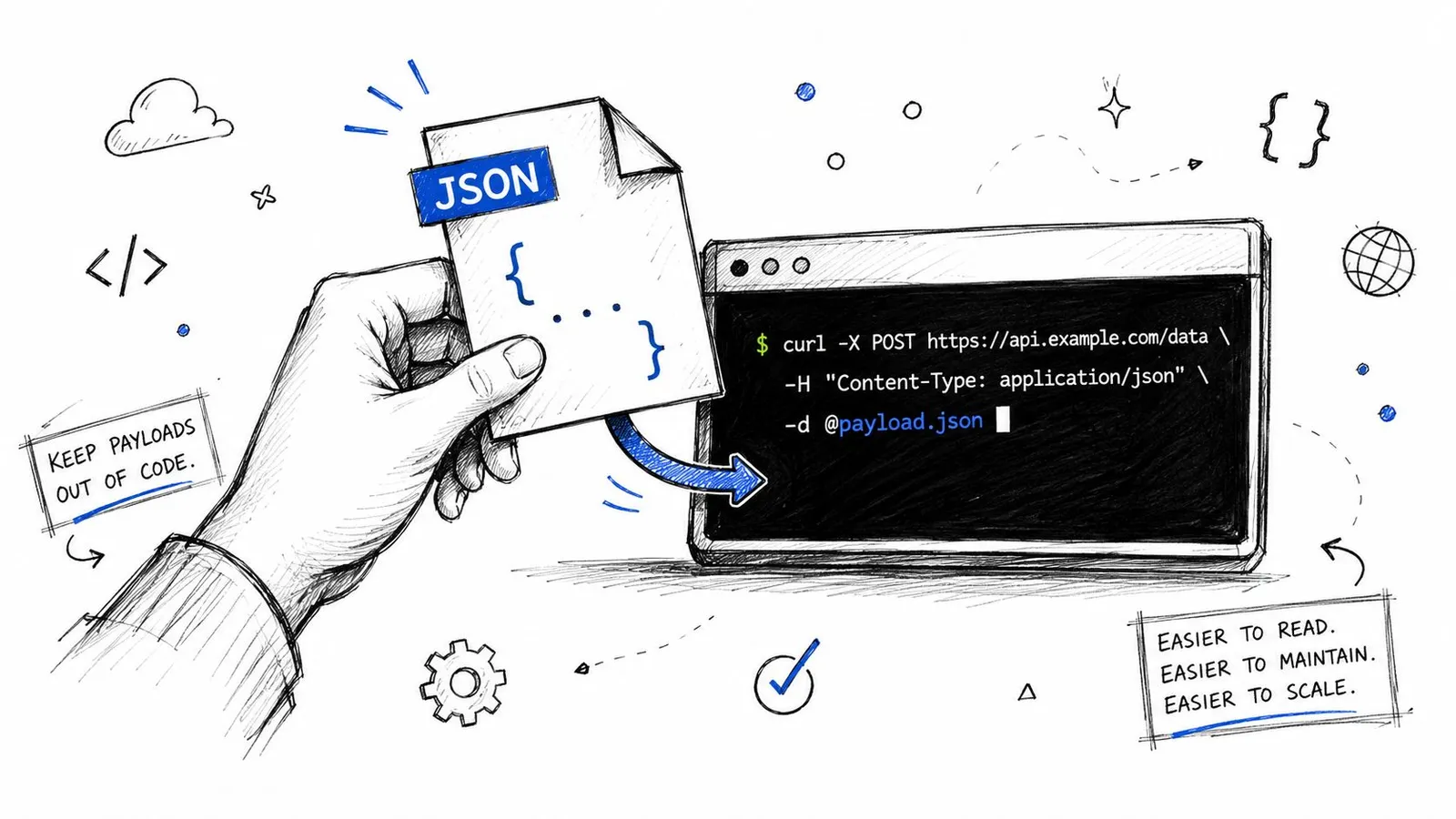
Inline JSON works for quick tests. It stops being practical once the payload gets longer than a few fields, especially when nested objects, arrays, or copied fixtures are involved.
A more realistic workflow is to keep the body in a file:
curl -X POST \
  -H 'Content-Type: application/json' \
  -d @payload.json \
  'https://api.example.com/users'
That immediately makes the command easier to read. It also separates request logic from request data, which is a better habit for repeatable scripts.
The part many guides skip
The trap is that -d and --data-binary are not interchangeable when payload fidelity matters. A common issue in curl post JSON guides is newline handling. The standard -d flag can strip or alter line breaks, while --data-binary preserves the payload exactly as-is, which matters when you're debugging malformed requests, as explained in this video on curl JSON pitfalls.
If your JSON file is pretty-printed and multi-line, or if you're piping content from another command, preserving the body exactly is often the safer move:
curl -X POST \
  -H 'Content-Type: application/json' \
  --data-binary @payload.json \
  'https://api.example.com/users'
When a server says “invalid JSON” but the file itself parses fine, the first thing I check is whether the body changed on the way out.
When to choose each option
- Use inline
-dfor quick, disposable tests with short payloads. - Use
-d @file.jsonwhen readability matters and the payload is simple. - Use
--data-binary @file.jsonwhen you need exact body preservation. - Use stdin carefully when chaining commands in a shell pipeline.
If you already work from a terminal-first workflow, Webclaw's CLI documentation is a good example of how teams structure command-line interactions around JSON inputs and outputs. The main lesson is the same regardless of tool: keep complex JSON out of your shell history when you can, and don't assume every “data” flag treats the body identically.
The Modern and Simple Way with JSON
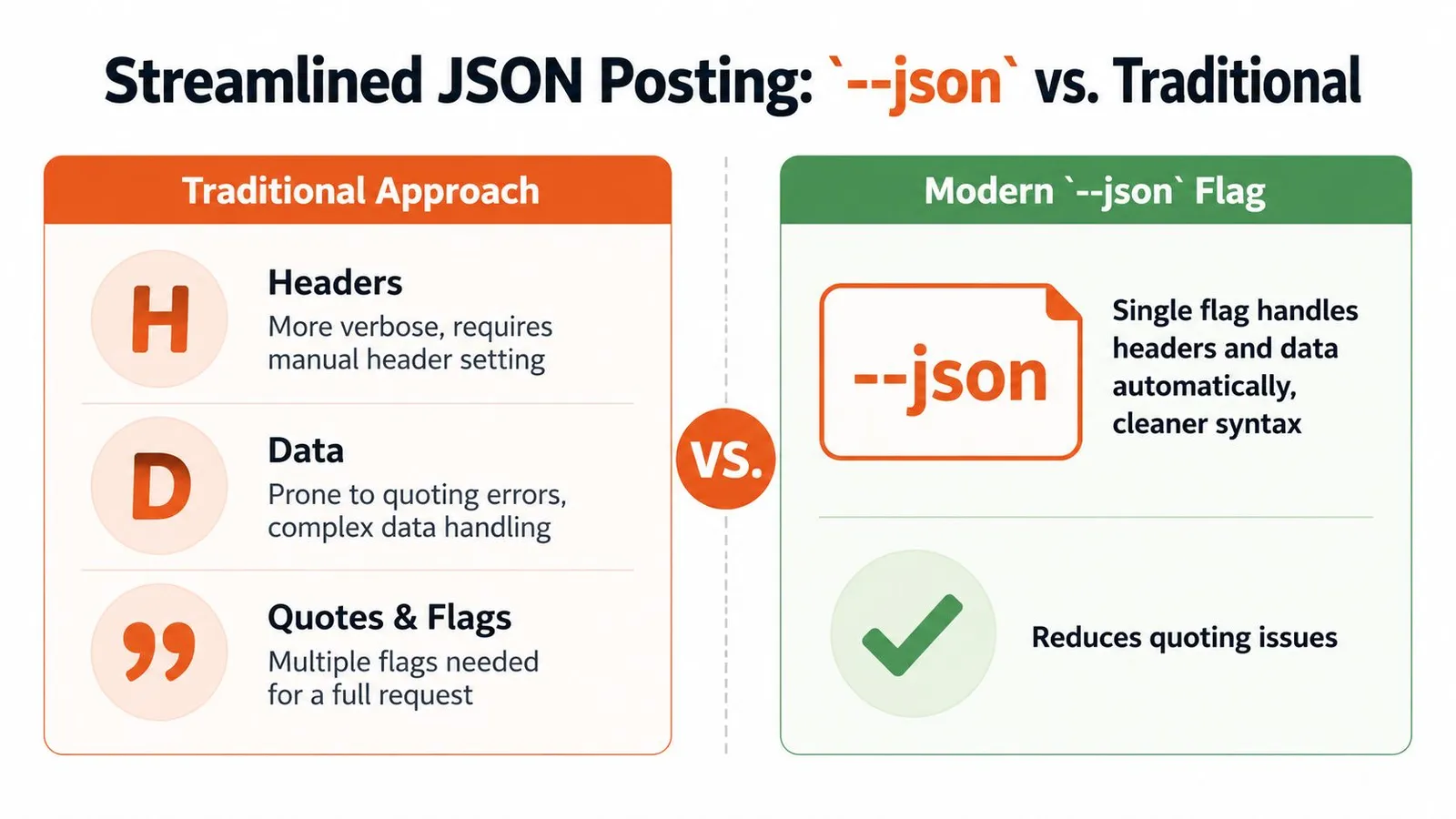
The biggest usability improvement for curl post JSON is --json. It was introduced in curl 7.82.0, and curl's own documentation shows that it replaces three separate pieces of manual setup: --data-binary, Content-Type: application/json, and Accept: application/json, which makes it a real shift in day-to-day command ergonomics in everything curl's JSON POST docs.
Here's the old style:
curl -X POST \
  -H 'Content-Type: application/json' \
  -H 'Accept: application/json' \
  --data-binary '{"name":"Ada"}' \
  'https://api.example.com/users'
Here's the newer form:
curl --json '{"name":"Ada"}' \
  'https://api.example.com/users'
Why this is better for new scripts
The main advantage isn't that it saves a few characters. The key advantage is that it removes places where people make mistakes. You don't forget a header. You don't mix -d with the wrong assumptions. You express intent directly: “send JSON.”
That matters when you come back to a script later and need to understand it in seconds instead of re-parsing a bundle of flags.
It also handles more than inline strings
--json isn't limited to literal JSON typed into the command. curl documents support for:
- A literal string, such as
--json '{"name":"Ada"}' - A local file, such as
--json @payload.json - Standard input, such as
--json @- - Multiple
--jsonflags, which curl can concatenate in one command
That flexibility is why I'd default to --json for most modern usage unless I had a compatibility reason not to.
A quick video demo helps if you want to see that cleaner syntax in action:
When not to use it
There's still one practical caveat. Some environments have older curl versions installed, especially on long-lived servers or locked-down enterprise systems. If you don't know what version is available, the older manual form is more portable because it works across a wider range of setups.
For new local scripts, team docs, and examples you control, I'd choose --json first. For shared snippets that must survive on unknown systems, I'd at least keep the manual fallback nearby. If your team also uses terminal tooling for API workflows, Webclaw's CLI product page is one example of how JSON-first command patterns fit naturally into developer tools.
Handling Authentication and Custom Headers
Most real API calls need more than a JSON body. They need identity, context, and sometimes tenant-specific metadata.
Bearer token auth is the common case:
curl --json '{"query":"status"}' \
  -H 'Authorization: Bearer YOUR_TOKEN' \
  'https://api.example.com/search'
That Authorization header is independent of how you send the JSON body. Whether you use the classic form or --json, auth still rides along as another header.
Typical header combinations
You'll often see requests that include several headers at once:
curl --json '{"url":"https://example.com"}' \
  -H 'Authorization: Bearer YOUR_TOKEN' \
  -H 'X-Request-ID: abc-123' \
  -H 'User-Agent: my-script' \
  'https://api.example.com/jobs'
A few patterns show up often:
- Bearer tokens for authenticated API access
- Idempotency or request IDs for safer retries and tracing
- Custom user agents for internal observability
- Vendor-specific headers for versioning or workspace selection
Keep auth and body concerns separate in your head. If the request fails, you want to know whether the problem is identity, headers, or JSON structure.
What to watch for
Don't stuff secrets directly into reusable shell history if you can avoid it. Environment variables or a secret manager are safer for anything beyond throwaway local testing.
Also, remember that --json doesn't replace custom headers. It removes some boilerplate, not all header work. Protected endpoints still need the same explicit auth you'd send in Postman or a language SDK. For a concrete example of endpoint-oriented API structure, Webclaw's endpoint docs show the kind of request organization that makes this easier to script consistently.
Inspecting Responses and Debugging Your Requests
A request that sends successfully can still be wrong. The server response tells you whether the body was accepted, rejected, transformed, or ignored.
Start with headers included:
curl -i --json '{"name":"Ada"}' \
  'https://api.example.com/users'
-i prints the response headers along with the body. That gives you the status code, response content type, and other metadata that often explains what happened faster than the body alone.
Use verbose mode when the behavior is strange
If the request still doesn't make sense, switch to verbose mode:
curl -v --json '{"name":"Ada"}' \
  'https://api.example.com/users'
-v shows the request and response exchange in far more detail. It's useful when you need to confirm which headers curl sent, whether redirects happened, or whether the server closed the connection unexpectedly.
A practical debugging flow looks like this:
- Run the request normally.
- Add
-ito inspect the response headers. - Add
-vif the problem still isn't obvious. - Save the output if you need to inspect it outside the terminal.
Save responses for inspection
For JSON APIs, shell redirection is often enough:
curl --json '{"name":"Ada"}' \
  'https://api.example.com/users' > response.json
Then inspect the file with your normal tools, including jq, an editor, or a follow-up script step.
If you prefer to compare terminal output with browser-based request tooling, Digital ToolPad's roundup of best online API testers can help you cross-check request shape and headers without rebuilding everything from scratch. That's handy when you're trying to answer a basic question: is curl the problem, or is the API rejecting the request no matter what client you use?
Common Pitfalls and Cross-Platform Shell Tips
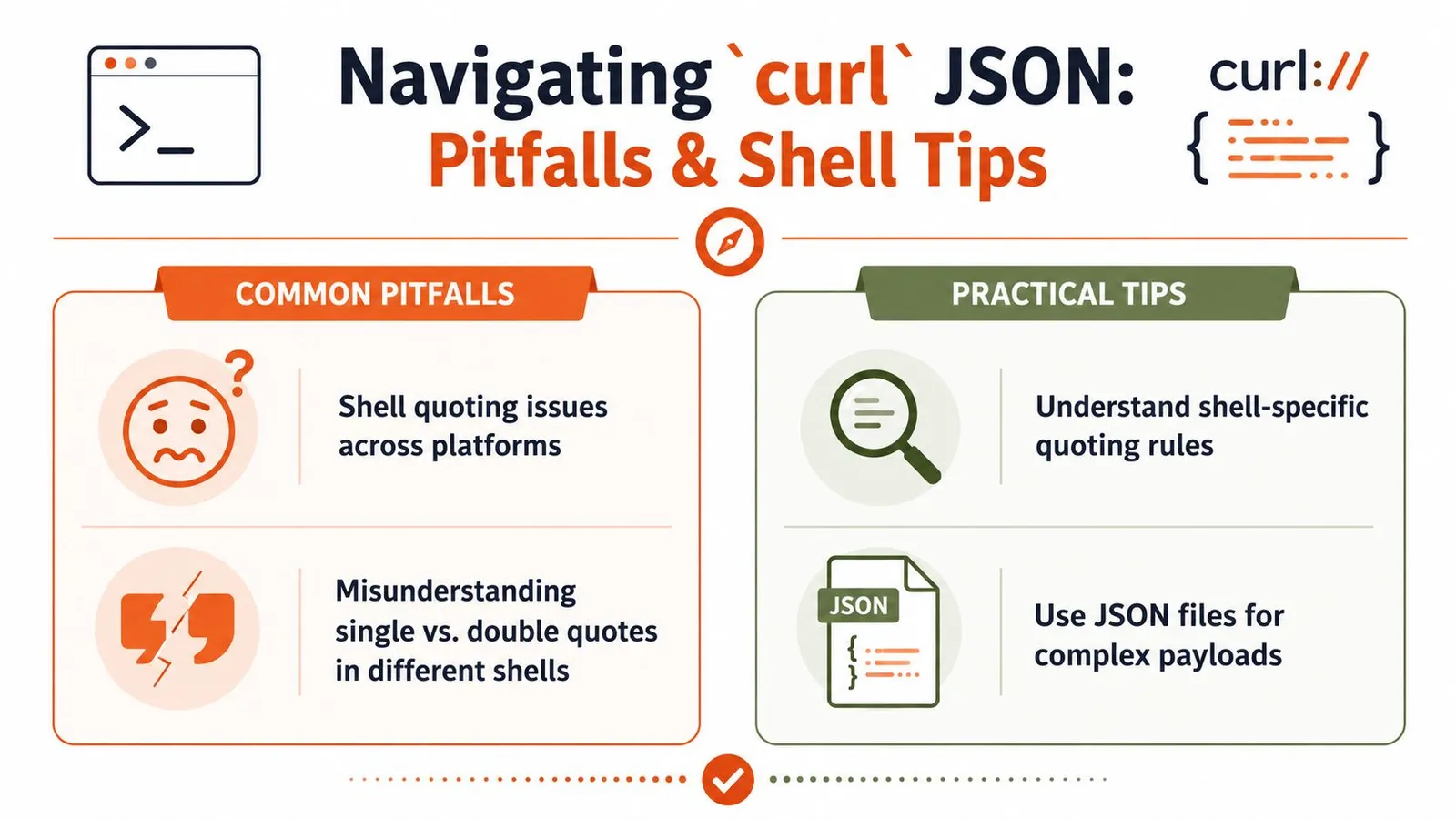
The hardest part of curl post JSON often isn't HTTP. It's your shell.
A command that works in Bash may break in PowerShell. A payload that looks fine in terminal history may contain quotes your shell already interpreted before curl ever saw them. That's why developers end up blaming APIs for what is really a quoting problem.
The failures that waste the most time
A frequent error is forgetting the Content-Type: application/json header when using -d. When omitted, curl -d defaults to application/x-www-form-urlencoded, which can make JSON APIs parse the body incorrectly or fail, as noted in this curl JSON header gist.
Quoting is the second major problem:
- Bash and Zsh usually handle single-quoted JSON well.
- Double quotes can trigger variable expansion or escaping issues.
- Windows shells often need different escaping rules than Unix-like shells.
- Complex nested JSON gets fragile fast when typed inline.
Practical shell habits
For Bash or Zsh, this is usually clean:
curl --json '{"name":"Ada","role":"developer"}' 'https://api.example.com/users'
For cross-platform work, files are often the better answer than clever escaping. A payload.json file avoids quote gymnastics and makes diffs, reviews, and debugging much easier.
| Problem | Better approach |
|---|---|
| Long inline JSON | Put it in payload.json |
| Multi-line body | Prefer exact-preservation methods |
| Unknown shell behavior | Test with a file first |
| Reused command | Turn it into a script with variables |
Use inline JSON for speed. Use JSON files for reliability.
A final checklist that actually prevents mistakes
- Confirm the shell first. A copied command isn't portable just because it looks standard.
- Prefer files for non-trivial payloads. They're easier to validate, version, and reuse.
- Use
--jsonwhen available. It removes manual setup you don't need to manage yourself. - Inspect the response, not just the command. Headers and verbose output explain more than guesswork does.
- Reach for an SDK when the workflow grows. If you're moving from curl experiments into application code, a typed client or an SDK such as Webclaw's Python SDK docs can replace a lot of brittle shell logic.
If you're building API-driven scraping, extraction, or agent workflows and need endpoints that accept structured JSON cleanly, Webclaw is one option to evaluate. It provides a REST API, CLI, MCP support, and SDKs for teams that want to move from one-off curl commands to repeatable JSON-based automation.